








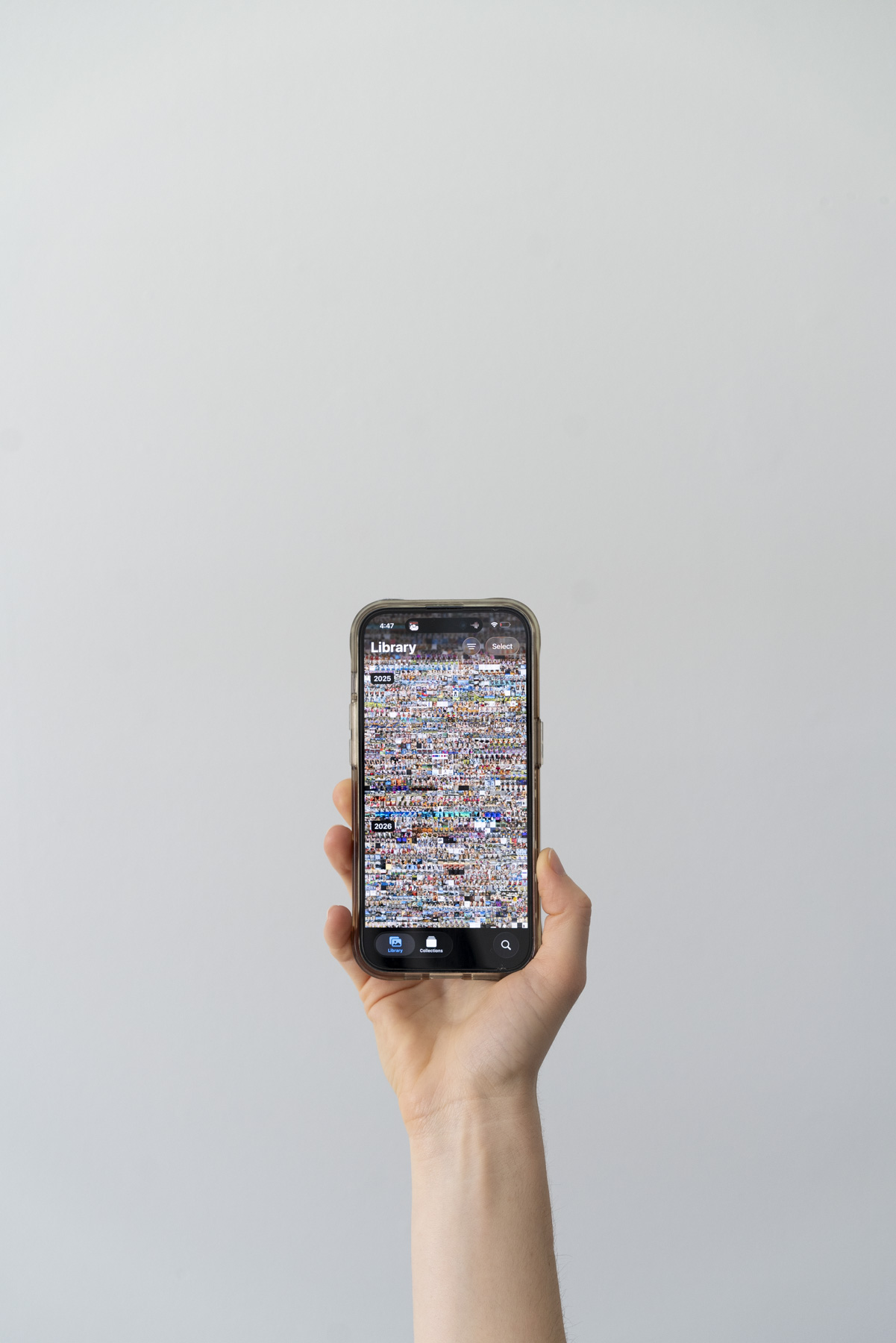
If you’re constantly seeing the “iPhone storage full” message and wondering how to make room on your iPhone, you’re not alone. I’ve been there, too (even as a photographer who should know better!).
My camera roll exploded after my daughter was born, and my phone was constantly out of storage. That finally pushed me to learn how to organize and manage my photo library. The Photos app and iCloud can seem overwhelming at first, but they’re actually simpler than they seem.
In this post, we’re going to tackle your camera roll in 4 steps:
- Free up space fast using iCloud (and the one setting you HAVE to turn on)
- Delete the junk with lesser-known Photos app features
- Organize your camera roll into a curated library
- Maintain your system with a simple routine
Ready to learn how to clean up your iPhone photos? Keep reading for everything you need to know!

Why Your Camera Roll Feels Overwhelming
Growing up in the 90s, my childhood photos lived in albums or boxes as prints. They were easy to find, count, and hold. But once everything went digital, I felt totally overwhelmed by the sheer number of files. Most of us now have thousands of photos on our phones (way more than we ever had as kids!).
No wonder it feels impossible to keep up. But our memories deserve better than getting lost in the digital abyss. You’re here because you want to actually enjoy and share your photos. Me too! Let’s do this together.

Step 1: Free Up Space on Your iPhone Using iCloud (And What It Does and Doesn’t Do)
If you’re looking for a quick fix to make room on your iPhone, your best bet is to enable iCloud and turn on Optimize iPhone Storage. Deleting photos one by one to save space when you need it is too slow and tedious (I know from experience).
If you have thousands of photos like I do, you’ll likely need to upgrade to iCloud+. Yes, this is not a free fix, but the small cost is absolutely worth it. And if you don’t want to be stuck paying a monthly fee forever (I don’t either!), I go over how to avoid it later in this post.
I steered clear of iCloud for way too long, only because I didn’t take the time to understand it. It’s actually simple (Apple’s iCloud setup guide breaks it down really clearly). Here’s the gist.
iCloud syncs your photos and videos across all your devices. Media is automatically uploaded to iCloud and stored in its original format at full resolution.
IMPORTANT: iCloud is a syncing system, not a true backup. When you delete or edit a photo on any device, that change happens everywhere iCloud is enabled. For a real backup, regularly export your iCloud photo library to a hard drive or another cloud storage service. This way, you’ll have a separate copy in case anything happens to your iCloud account. I have a post in the works about how to do this!

How to Set up iCloud on Your iPhone
Here’s a quick step-by-step on how to set up iCloud:
- Open Settings on your iPhone and tap your name at the top.
- Go to iCloud, then tap Photos.
- Turn on Sync this iPhone.
- If you need more space, tap Manage Storage or Upgrade to iCloud+ to choose a plan that fits your needs.
- 50GB storage for $0.99/month
- 200GB storage for $2.99/month
- 2TB storage for $9.99/month
- Make sure Optimize iPhone Storage is turned ON. With this enabled, your photos and videos are saved at full resolution in iCloud, while smaller, space-saving versions remain on your iPhone. This is how you save hundreds of GB of space. Your full-resolution photos stay safely stored in iCloud, and your iPhone downloads the original version anytime you tap to view or edit a photo.


By enabling iCloud+ and turning on Optimize iPhone Storage, I instantly freed up about 200GB of space, about 7,000 photos and 2,000 videos worth of storage.
Once set up, your media will sync automatically and begin freeing up space.
How to Avoid Paying for iCloud Forever (If You Don’t Want To)
To avoid a monthly iCloud subscription, organizing your photos is key.
The long-term solution is all about building a few easy habits: regularly delete the photos you don’t need, back up your favorites to your computer or an external drive, and keep your favorites in simple albums on your phone.
You can always keep iCloud if you want your library on all devices, or as a backup in case something happens to your iPhone. It’s totally up to you!

Step 2: Use These Built-In Photos App Features to Declutter Faster
Now that your iPhone has some breathing room and it’s not yelling at you about storage, you can actually start organizing.
A good place to start is to go to Collections > Media Types > Screenshots and delete any screenshots you no longer need.
Here are some other handy Photos app features you might not know about to help you start decluttering quickly.
Bulk Delete: Go to the same spot you went to delete screenshots, Collections > Media Types. You’ll find folders for different kinds of media, such as Videos, Selfies, Live Photos, Screen Recordings, and Portraits. This makes it easy to bulk-delete groups of files or narrow down shots you might want to remove.
Remove Duplicates: Go to Utilities > Duplicates to merge and clean up duplicates on iPhone. In Utilities, you’ll also spot folders for Receipts, photos with Handwriting, Documents, Imports, and more. You can also find your Favorites folder here.

Filter Fast: Automatically organize your camera roll by date, location, and more with the Filter feature. Tap the three lines icon in the top right of the Photos app. Another quick tip: you can instantly hide Screenshots and Shared With You items by going to Filter > View Options > Show.
Smart Search: Use the Search feature to find photos by person, pet, location, date, or even categories (such as sunsets or flowers) and events.

Step 3: Organize Your iPhone Photos Into a Curated Library
Once you clear out the junk, tackle your camera roll month by month. Delete what you don’t need, and tap the heart on your favorite shots (find those in Collections > Pinned > Favorites or Collections > Utilities > Favorites). Think of your Favorites as your highlight reel, a smaller collection of photos you like revisiting and sharing from your phone.
From there, you have some options:
- Create an Album on your phone for each month
- Transfer your photos to a hard drive and your computer, then delete them from your phone to save space
- Or do both. Keep only your favorite photos on your phone and transfer the rest
For a deeper walkthrough, you can read my full guide on how to organize your iPhone photos (I talk prints, too!).

Step 4: How to Keep Your iPhone Photos Organized for Good
At this point, your overwhelming camera roll should feel a little more manageable. Now the trick is keeping it that way! Photo organizing isn’t a big project you finish once. It works best as a short, doable, repeatable habit.
To make it easier, I put together a free guide with 4 quick steps you can repeat every month (or whenever works for you) to build a habit that actually sticks. It’s called the Simple Photo Reset: 4 Steps to Declutter + Organize Your Photos, and you can download it below!
FAQ’s: How to Clean Up Your iPhone Photos
Does iCloud actually save space on your iPhone?
Yes, but only if Optimize iPhone Storage is ON. Find it in Settings > your name > iCloud > Photos.
Is iCloud a backup for photos?
No, iCloud only syncs your library across Apple devices. Any changes you make to a file, like deleting it or editing it, are reflected everywhere. To back up your camera roll, transfer your library to an external drive. I like to do this after organizing.
How do I delete photos but keep them in iCloud?
Because iCloud Photos syncs across devices, deleting a photo from your iPhone will also delete it from iCloud. If you want to remove photos from your camera roll but keep a copy elsewhere, you’ll need to export them to a computer, external hard drive, or another online storage service first.
Adding photos to Shared Albums can hold copies of photos outside your main library, but images are compressed and not stored at full resolution.
How do I merge duplicate photos on iPhone?
Go to the Photos App > Collections > Utilities > Duplicates. Merging duplicates will save one of the files and move the rest to Recently Deleted.
Is iCloud worth it?
If you need to free up space on your phone fast, YES! Turning on iCloud with Optimize iPhone Storage turned on automatically keeps full-resolution copies in iCloud while storing smaller, space-saving versions on your device.

Any Photo Organizing Questions?
A messy camera roll can be totally overwhelming, but once you understand how iCloud works and how to clean up your iPhone photos, managing it becomes much easier! Start with freeing up space, delete the obvious clutter, then organize your favorites so your photos are easy to enjoy again.
If you want to turn your organized photos into something tangible, like prints or a photo album, check out my guides on how to make an Artifact Uprising photo book and the best photo storage box.
Wrapping up, what’s the biggest photo-clutter question I can help you with? I’ll be writing more posts about how to clean up your iPhone photos soon, but in the meantime, post your questions in the comments or email me at abby@abbymurphyphoto.com. I’d love to help you get organized!



+ SHOW comments
Add a comment